
The editor
Rich view versus source, formatting, the command surface, and how Multilo stays responsive on very large documents.
The editor is where you read and write. It renders your document as a clean, formatted page — and underneath, it speaks the AI-native Markdown that lets agents reason about and edit your work precisely.
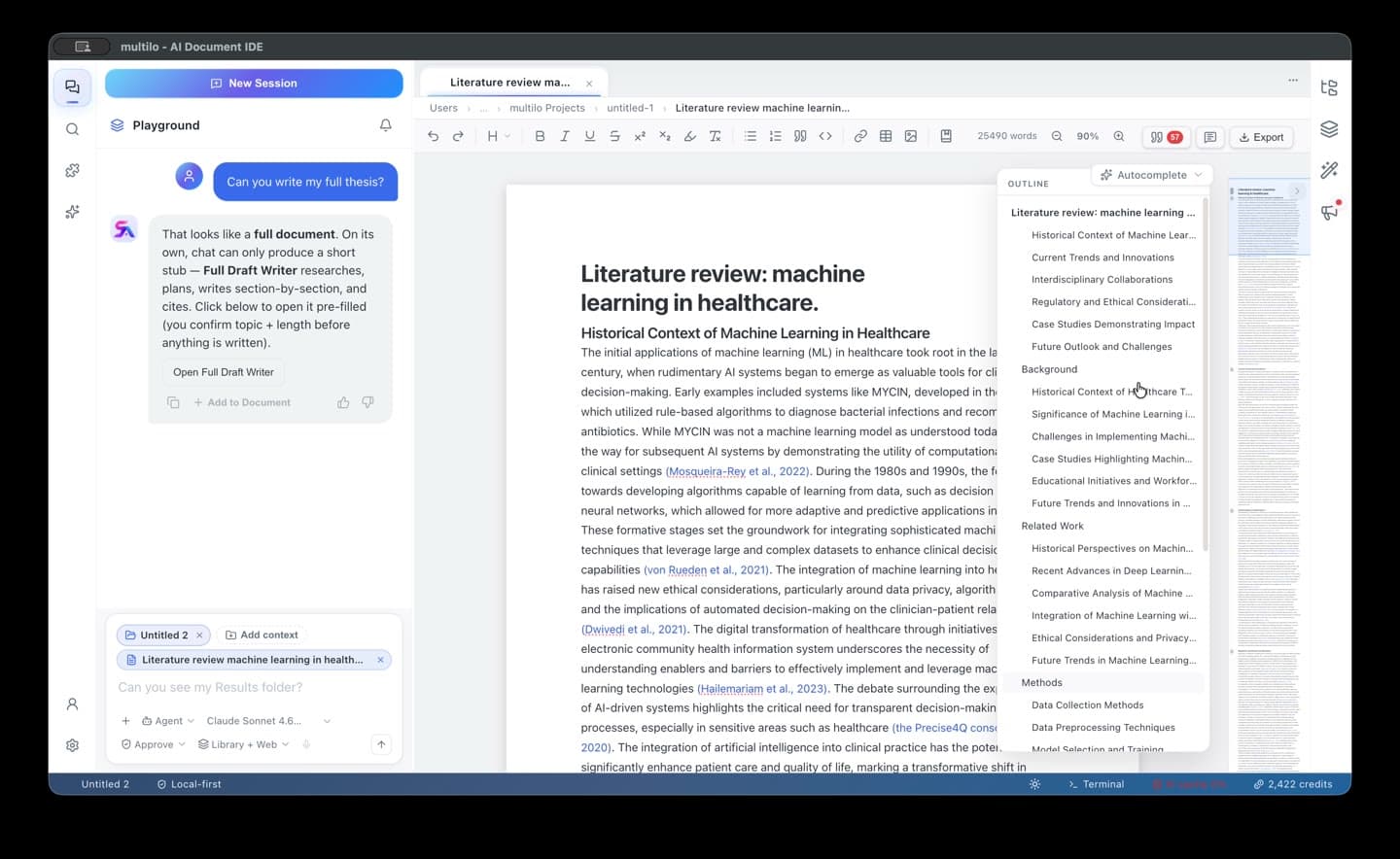
Rich view and source view
By default you work in the rich view: headings, lists, tables, and citations render the way they will look. When you want to see or edit the underlying structure directly, switch to the source view. Edits in either view stay in sync, so you can move between them freely.
Formatting
Multilo supports the structure academic documents actually use — headings and subheadings, ordered and bulleted lists, tables, block quotes, footnotes, and in-text citations. When you open a Word file, that structure is preserved both ways: in from .docx and back out to it. See working with Word for the round trip, and citations & bibliography for reference handling.
Chat is the command surface
Instead of hunting through menus, you drive the editor from chat. Ask it to rewrite a paragraph, restructure a section, or insert a citation, and it edits the open document in place. You can also get inline suggestions as you type, and hand whole-document jobs to agents.
Your document, not a copy
Everything the AI does happens on your real document — no pasting in and out of a chat window, so citations and formatting never break.Large documents stay fast
Theses and long reviews can be huge, so the editor is built not to choke on them. Very large or very long files open in a streamlined source view tuned for responsiveness, and editing tools work on the part of the document around your cursor rather than re-processing the whole file on every keystroke. Opening a big document should never hang the app.